


GiftPals Shop Building Tutorial: Creating and Editing a Free Shop
If you want an easy way to showcase products online, GiftPals shop building lets you create a dedicated shop and customize it in a few quick steps. This guide walks you through creating and editing a free GiftPals shop, from logging in to publishing your shop so customers can find you.
Quick action: Log in → Open My Shop → Click Edit → Save your updates.
At a Glance
You will learn how to:
- Create your shop by logging in to GiftPals
- Access My Shop from your profile menu
- Edit key shop details (name, description, slogan, image)
- Add a shop discount (optional) and publish your shop
Step 1 — Log in to GiftPals
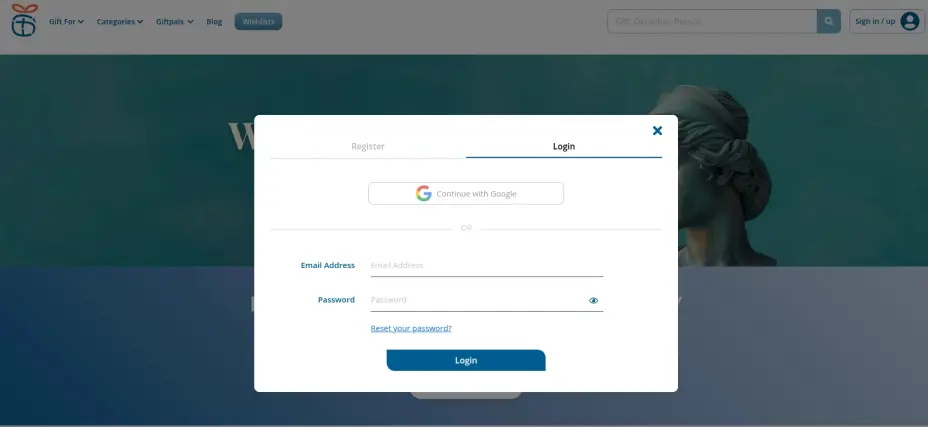
1. Open GiftPals.
2. Click Login (upper-right corner).
3. Select Continue with Google and choose your Google account to sign in.
Step 2 — Open “My Shop”
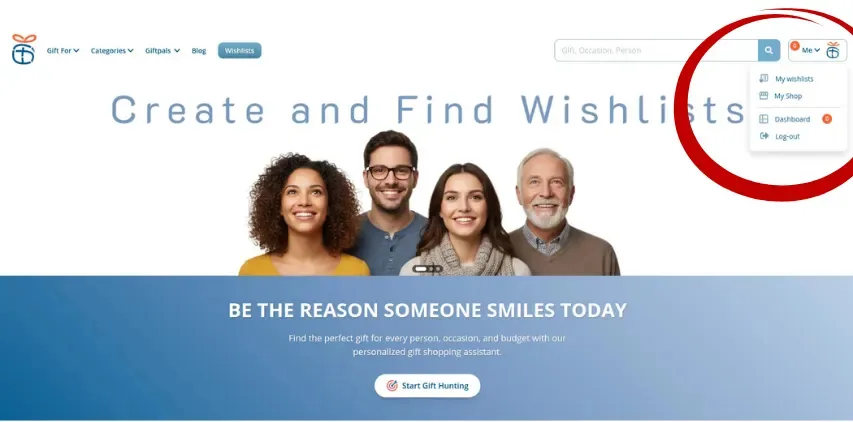
1. After logging in, click your Profile icon (upper-right orner).
2. From the menu, select My Shop.
Once you enter My Shop, your dedicated shop is available to you—free to set up and ready to customize.
Step 3 — Open the Shop Editing Window
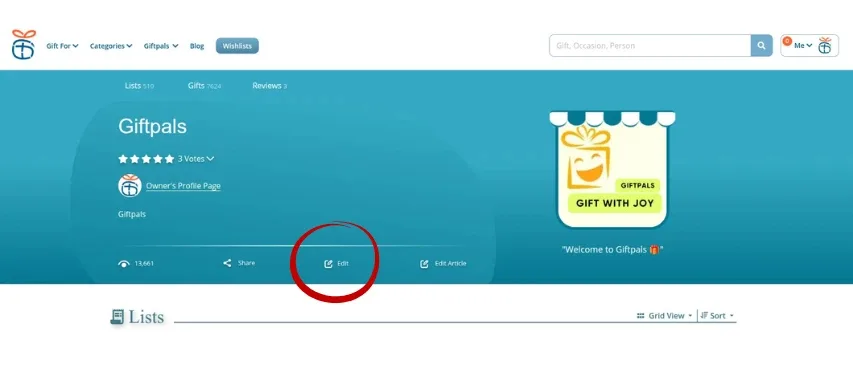
Inside My Shop, click the Edit icon to open your shop settings.
This is where you update the information customers will see when they visit your shop page.
Step 4 — Fill in your Shop Details
Complete the following fields carefully. These are the basics of a professional-looking shop and help customers understand what you offer.
Shop Name
In Shop Name, enter a clear, recognizable name
for your store.
Tip: Use a name customers would actually search
for (brand name + category, if relevant).
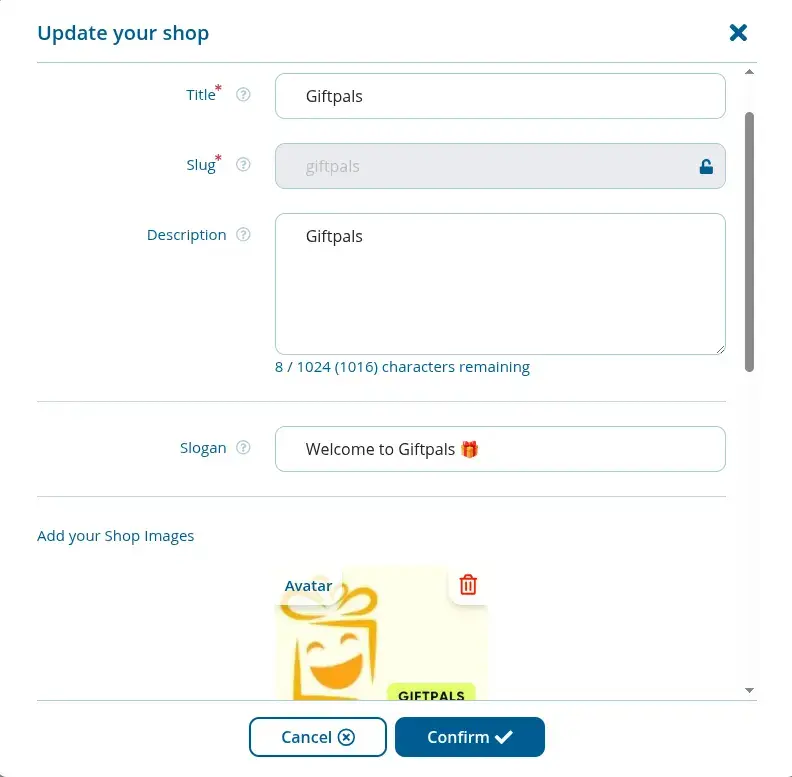
Description
In Description, write a short overview of your shop. Include:
- What you sell or offer
- Your contact number
- Your address (if you want local customers to reach you easily)
Example (short and effective):
“Handmade gifts and custom bundles. Call/text: +1 (xxx) xxx-xxxx.
Pickup available in [City].”
Slogan
In Slogan, add a short brand message that communicates your value quickly.
Examples:
- “Gifts that feel personal.”
- “Fresh ideas. Fast delivery.”
- “Curated picks for every occasion.”
Shop Image
In Add Your Shop Image, upload your shop image or logo. This improves trust and makes your shop page look more polished.
Best practice:
- Use a clean logo (square format usually works best)
- Avoid heavy text or low-resolution images
Step 5 — Add a Discount (optional)
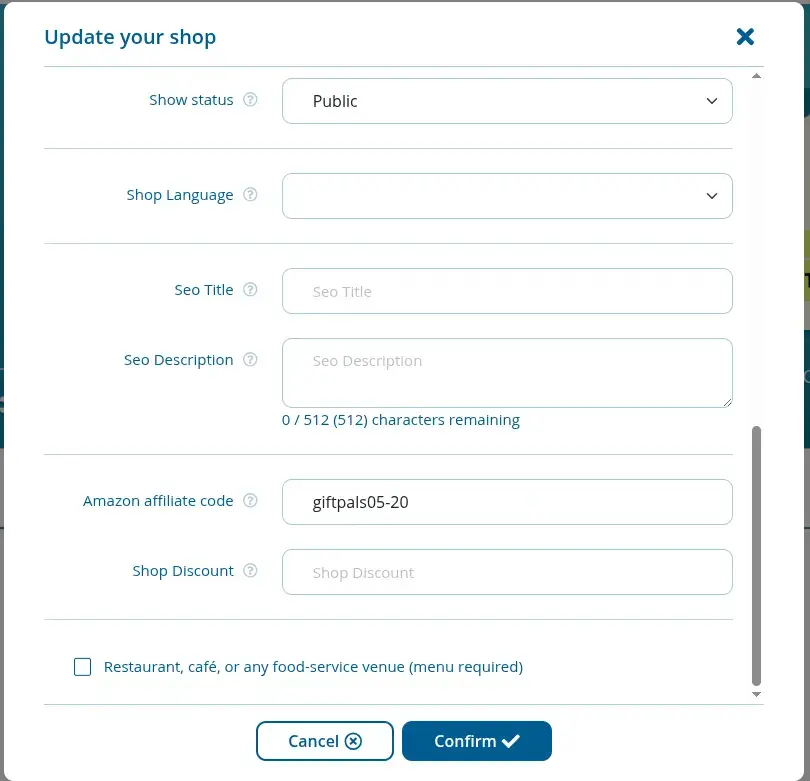
If you want to offer a discount:
- Find Shop Discount.
- Enter a number between 1 and 100 as your discount percentage.
Example:
- Discount percentage: 10
- Discount Code: 10 (use your preferred code format if GiftPals supports separate codes)
Tip: Keep discount messaging simple and consistent across your shop page and social profiles.
Step 6 — Save and Publish your Shop
Click Save to apply your changes.
Once saved, your shop is ready to be displayed to customers. At this point, you can start sharing your shop link and introducing your products to a wider audience.
Call to action: Create your free shop on GiftPals now, complete your shop details, and start showcasing your products today.
Common Mistakes to Avoid
- Leaving the description empty: Customers need quick clarity on what you sell and how to contact you.
- Using a low-quality logo: A blurry image reduces trust immediately.
- Overwriting the slogan with a long paragraph: Keep slogans short and memorable.
- Setting discounts without a clear message: If you offer 10% off, make it easy to understand and easy to use.
FAQ
❓ Is GiftPals shop building free?
- Yes. After you log in and open My Shop, you can set up and customize your shop without cost.
❓ Where can I find “My Shop”?
- Log in first, then click Profile (upper-right) and select My Shop from the menu.
❓ What should I write in the shop description?
- Include what you sell, your contact number, and (optionally) your address. Keep it short, clear, and customer-focused.
❓ Do I need a slogan?
- It is optional, but strongly recommended. A short slogan helps customers remember your shop and understand your brand quickly.
❓ What discount percentage should I start with?
- If you are testing promotions, a small discount like 5–15% is a common starting point. Adjust based on your margins and demand.
❓ Why is my shop not showing correctly?
- In most cases, it is because changes were not saved or the shop image is missing. Reopen Edit, confirm fields, then Save again.






 Continue with Google
Reviews