


Best Tablets for Designers in 2026: Top 10 Picks (Drawing, UI/UX, 3D)
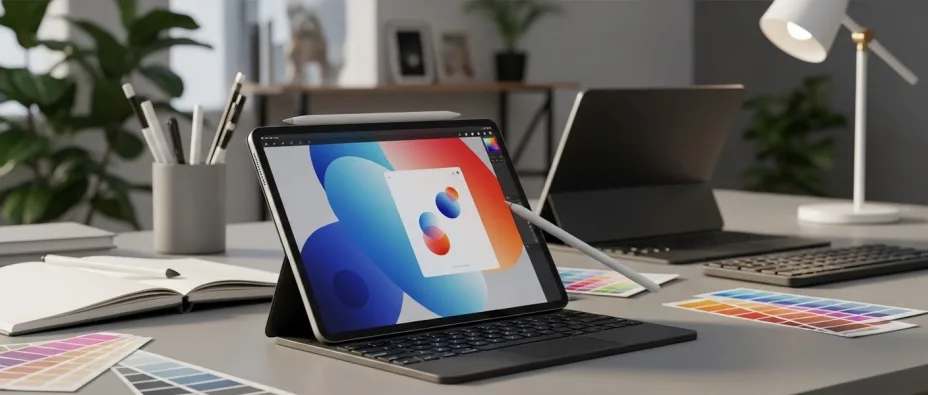
Choosing the wrong tablet can ruin a design workflow—laggy pen response, inaccurate color, and limited app support quickly turn “portable creativity” into frustration. In this 2026 guide, you’ll find the best tablets for designers who need a reliable stylus feel, strong display quality, and performance that holds up on the go.
This list covers the most common design use cases: illustration, UI/UX design, 3D concept work, photo editing, note-taking, and client reviews. Every pick is selected using practical criteria designers actually feel day to day—pen latency and pressure control, color and brightness, app ecosystem, sustained performance, battery, and accessory support—so you can choose confidently based on real tradeoffs, not marketing claims.
Quick Picks
- Best for Graphic Design (Adobe workflows): Wacom Cintiq Pro 17
- Best for Digital Art & Illustration: XPPen Artist Ultra 16 (4K OLED)
- Best for Architecture & CAD (Students + Pros): Wacom Cintiq 24 Touch
- Best for UI/UX & Prototyping: Apple iPad Pro 13-inch (M4)
- Best Tablet for Procreate and Photoshop: Apple iPad Air 11-inch (M3)
- Best Tablet for Drawing With Pen: Wacom Intuos Pro Medium (Bluetooth)
- Best Drawing Tablet for Beginners: Wacom Intuos Medium (Bluetooth)
- Best iPad for Designers: Apple iPad Pro 13-inch (M4)
- Best Android Tablet for Designers: Samsung Galaxy Tab S11 Ultra
- Best Budget Pick Under $300: XP-PEN Artist 12 (11.6" FHD Drawing Monitor)
- Best Budget Pick Around $500: Xencelabs Pen Tablet Medium Bundle v2
- Best Budget Pick Around $1000: Wacom Cintiq 22 (Drawing Tablet with Screen)
Top 10 Best Tablets for Designers
1. Best for Graphic Design (Adobe workflows) — Wacom Cintiq Pro 17
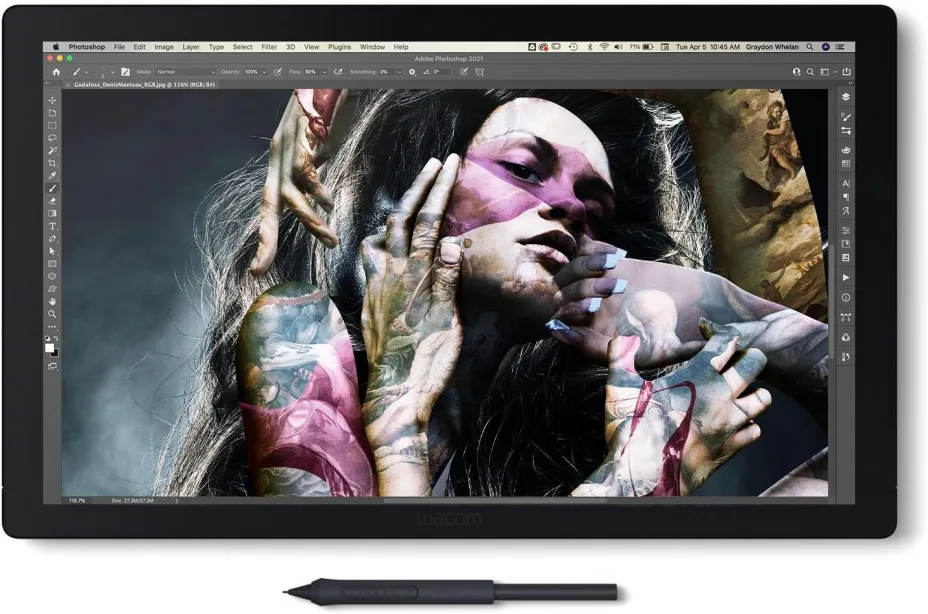
A color-accurate 4K, high-refresh pen display that feels closest
to “paper + pro monitor” for Photoshop/Illustrator-heavy
work.
Best for: Adobe Photoshop/Illustrator, photo
retouching, production layout | Not ideal for:
Travel, minimal desk setups, budget builds
Key Specs:
- Display: 17.3" 4K (3840×2160), up to 120Hz, up to 400 nits, 99% Adobe RGB / 98% DCI-P3
- Stylus: Wacom Pro Pen 3, 8192 pressure levels, tilt support
- Performance: Host-PC dependent; supports high refresh and pro color workflows
- Storage/Ports: mini HDMI + USB-C + USB-A (and security slot)
- Weight/Battery: ~2.4 kg (no battery; powered/connected)
- Display & color: 4K sharpness + wide gamut helps with typography edges, gradients, and print-proofing.
Pen feel (latency/pressure/tilt/shortcuts)
| Feel factor | What you get |
|---|---|
| Latency/Responsiveness | Very fast stroke tracking; high refresh helps reduce perceived lag |
| Pressure | 8192 levels |
| Tilt | Supported |
| Shortcuts | Best when paired with on-screen shortcuts / external remotes/keyboard (Adobe workflow) |
Pros / Cons
| Pros | Cons |
|---|---|
| Excellent pro color coverage (Adobe RGB/DCI-P3) | Premium pricing |
| 4K + up to 120Hz feels “tight” for brushwork | Needs a capable PC/Mac + proper cabling/ports |
2. Best for Digital Art & Illustration — XPPen Artist Ultra 16 (Gen2) 4K OLED
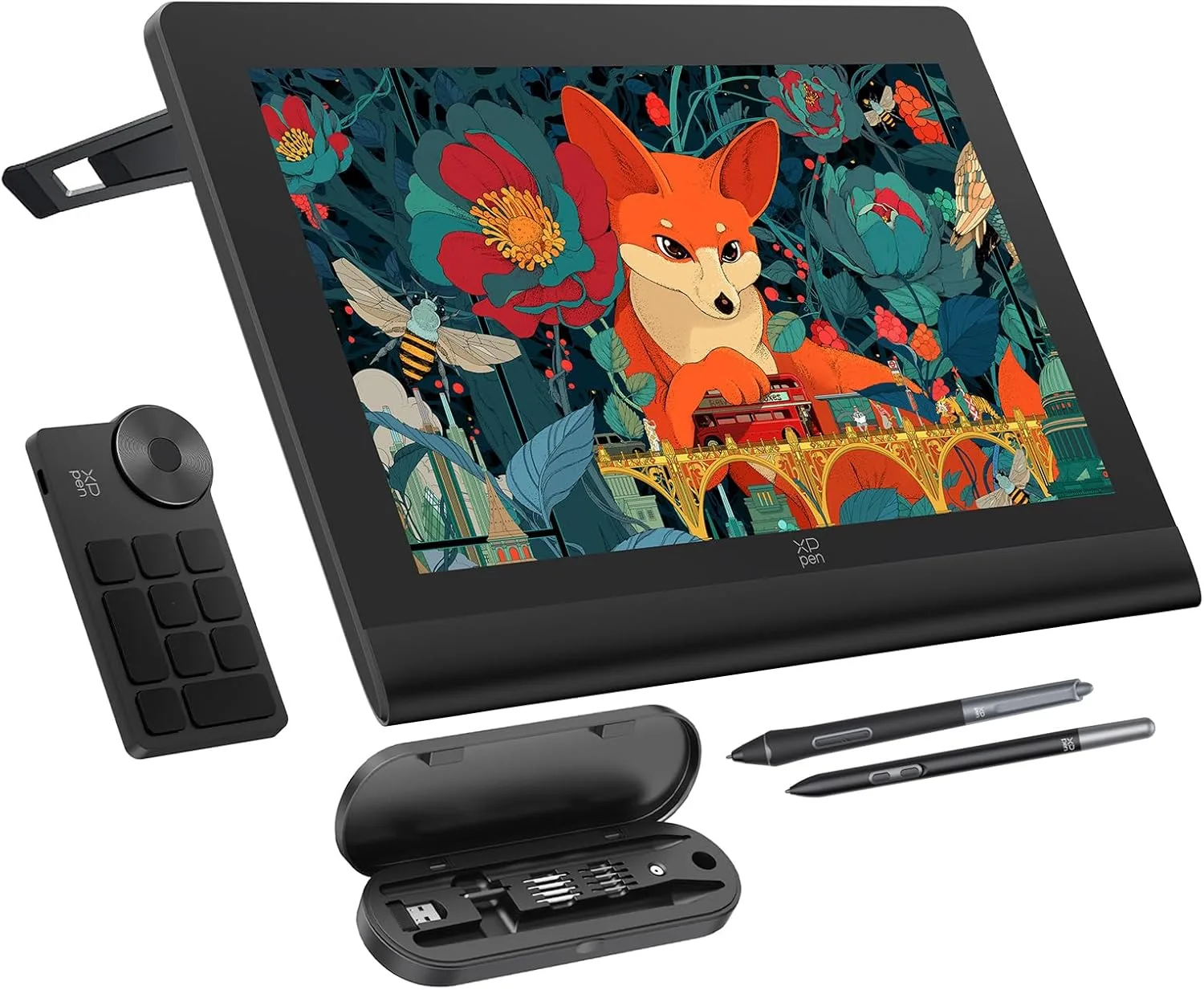
The best “illustration-first” value pick here if you want OLED
contrast, 4K detail, and strong pen performance without Wacom
pricing.
Best for: Illustration, character art, painterly
rendering | Not ideal for: Color-critical print
proofing across Adobe RGB targets (always calibrate)
Key Specs:
- Display: 16" 4K OLED pen display
- Stylus: Battery-free stylus (brand spec; pressure/tilt supported)
- Performance: Host-PC dependent (it’s a pen display)
- Storage/Ports: Connection depends on host setup/cables (see model page)
- Weight/Battery: No battery (powered/connected)
- Display & color: OLED blacks + 4K tightness are especially noticeable on line art, shading ramps, and dark UI themes.
Pen feel (latency/pressure/tilt/shortcuts)
| Feel factor | What you get |
|---|---|
| Latency/Responsiveness | Very responsive for sketching/inking (host + refresh dependent) |
| Pressure | Supported (see model spec sheet) |
| Tilt | Supported (see model spec sheet) |
| Shortcuts | Typically relies on keyboard/remote or on-screen shortcuts |
Pros / Cons
| Pros | Cons |
|---|---|
| OLED contrast + 4K detail is excellent for illustration | Workflow still requires a computer (not standalone) |
| Strong value at its price tier | Calibrate for consistent color across devices (recommended) |
3. Best for Architecture & CAD (Students + Pros) — Wacom Cintiq 24 Touch
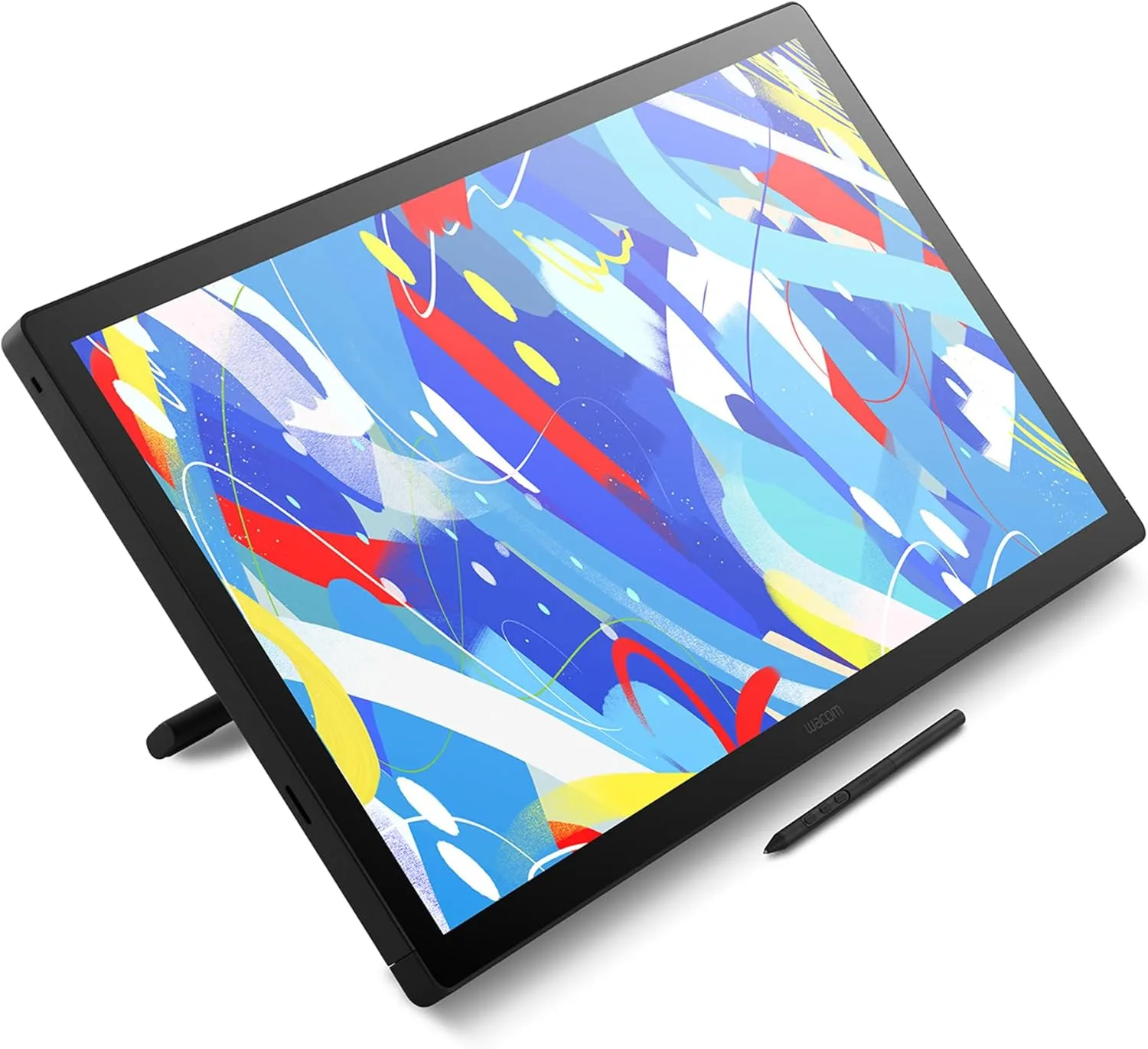
A large, precise pen display with multi-touch that’s excellent
for CAD navigation, markups, and multi-panel
workflows.
Best for: AutoCAD/Revit/SketchUp workflows, crit
markups, BIM review | Not ideal for: Tight
desks, portable work
Key Specs:
- Display: 23.8" 2560×1440
- Stylus: Pro Pen 3, 8192 pressure, tilt 60°
- Performance: Host-PC dependent; supports up to 2560×1440 @ 60Hz with proper ports
- Storage/Ports: mini HDMI + USB-C
- Weight/Battery: 5 kg without stand (no battery)
- Display & color: 1440p at ~24" is a sweet spot for readable UI + crisp linework without overwhelming GPU needs.
- Pen + touch: Multi-touch helps with pan/zoom/orbit habits that CAD users rely on.
Pen feel (latency/pressure/tilt/shortcuts)
| Feel factor | What you get |
|---|---|
| Latency/Responsiveness | Smooth for drafting + markup (host dependent) |
| Pressure | 8192 levels |
| Tilt | 60° |
| Shortcuts | Pen buttons + touch gestures; add keyboard/remote for CAD hotkeys |
Pros / Cons
| Pros | Cons |
|---|---|
| Big workspace for plans + palettes | Heavy; best as a fixed workstation |
| Touch is genuinely useful for CAD navigation | Not standalone; needs a computer |
4. Best for UI/UX & Prototyping — Apple iPad Pro 13-inch (M4)
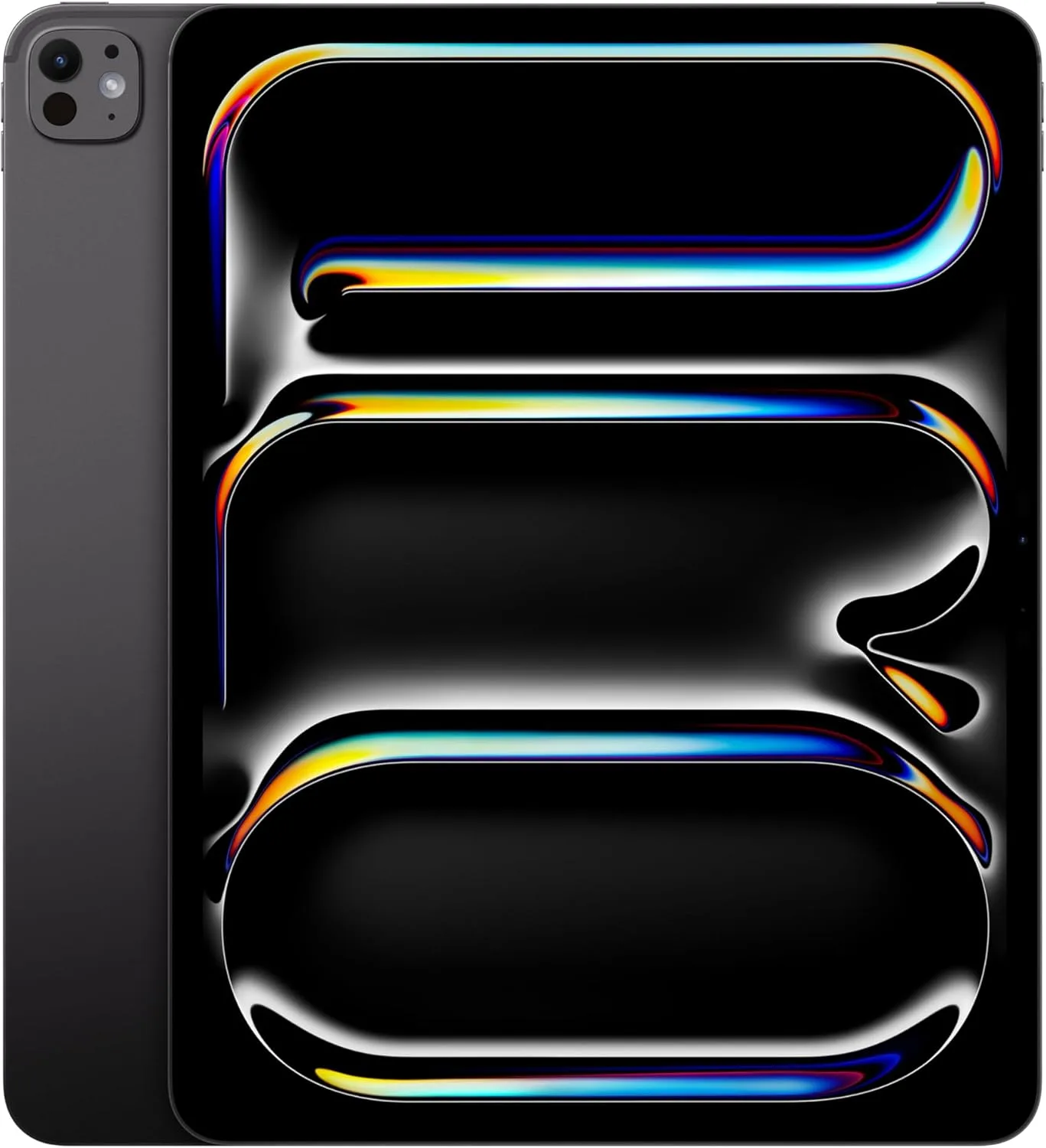
The fastest “design anywhere” tablet for Figma-style
review/prototyping, sketching flows, and client
workshops—especially with Apple Pencil Pro.
Best for: UI review/prototyping, workshops,
on-the-go iterations | Not ideal for: Full
desktop plugin workflows or niche CAD add-ins
Key Specs :
- Display: 13" Ultra Retina XDR with ProMotion (per Apple tech specs)
- Stylus: Apple Pencil Pro support
- Performance: Apple M4
- Storage/Ports: USB-C with Thunderbolt / USB 4 (per Apple tech specs)
- Weight/Battery: ~579 g (Wi-Fi) (per Apple tech specs)
- Display & color: Excellent for UI contrast checks and motion previews; the big screen helps when presenting flows.
Pen feel (latency/pressure/tilt/shortcuts)
| Feel factor | What you get |
|---|---|
| Latency/Responsiveness | Very low perceived lag with Pencil + ProMotion (app-dependent) |
| Pressure | Supported (Apple does not publish “pressure levels”) |
| Tilt | Supported (Pencil feature set) |
| Shortcuts | Pencil gestures + iPadOS gestures; external keyboard improves “desktop-like” prototyping |
Pros / Cons
| Pros | Cons |
|---|---|
| Best-in-class tablet performance for creative apps | iPadOS limits some desktop workflows |
| Top-tier accessory ecosystem (Pencil Pro, keyboards) | Storage upgrades can get expensive |
Note: Apple has since released an iPad Pro with M5 (Oct 2025). If you want “latest-gen,” use that model in your 2026 lineup.
5. Best Tablet for Procreate and Photoshop — Apple iPad Air 11-inch (M3)
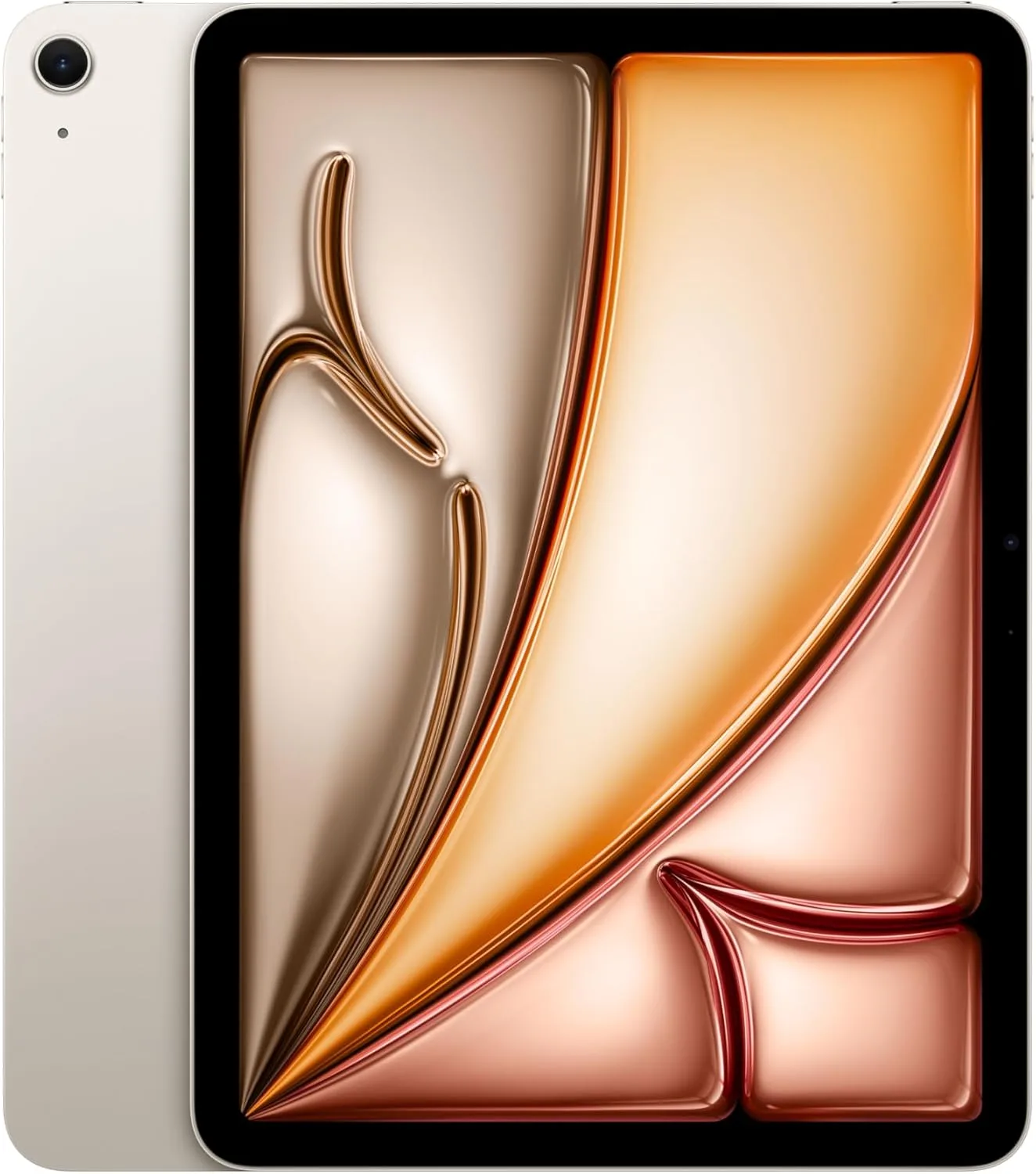
The best value iPad for Procreate + Photoshop-style work if you
want Pencil Pro support without iPad Pro pricing.
Best for: Procreate, student creators,
hobby-to-serious workflows | Not ideal for:
Those who want ProMotion (high refresh) or maximum display
brightness
Key Specs :
- Display: 11" Liquid Retina (per Apple tech specs)
- Stylus: Supports Apple Pencil Pro and Apple Pencil (USB-C)
- Performance: Apple M3
- Storage/Ports: USB-C (per Apple tech specs)
- Weight/Battery: ~462 g (Wi-Fi) (per Apple tech specs)
- Display & color: More than sufficient for illustration and photo edits; iPad Pro remains the step-up for refresh/peak display features.
Pen feel (latency/pressure/tilt/shortcuts)
| Feel factor | What you get |
|---|---|
| Latency/Responsiveness | Excellent for drawing; depends on app and refresh behavior |
| Pressure | Supported (Apple does not publish “pressure levels”) |
| Tilt | Supported via Pencil feature set |
| Shortcuts | Pencil gestures + touch gestures; keyboard optional |
Pros / Cons
| Pros | Cons |
|---|---|
| Strong price/performance for creators | No “Pro” display feature set (vs iPad Pro line) |
| Pencil Pro support at a lower starting price | iPadOS desktop limitations remain |
6. Best Tablet for Drawing With Pen — Wacom Intuos Pro Medium (Bluetooth)
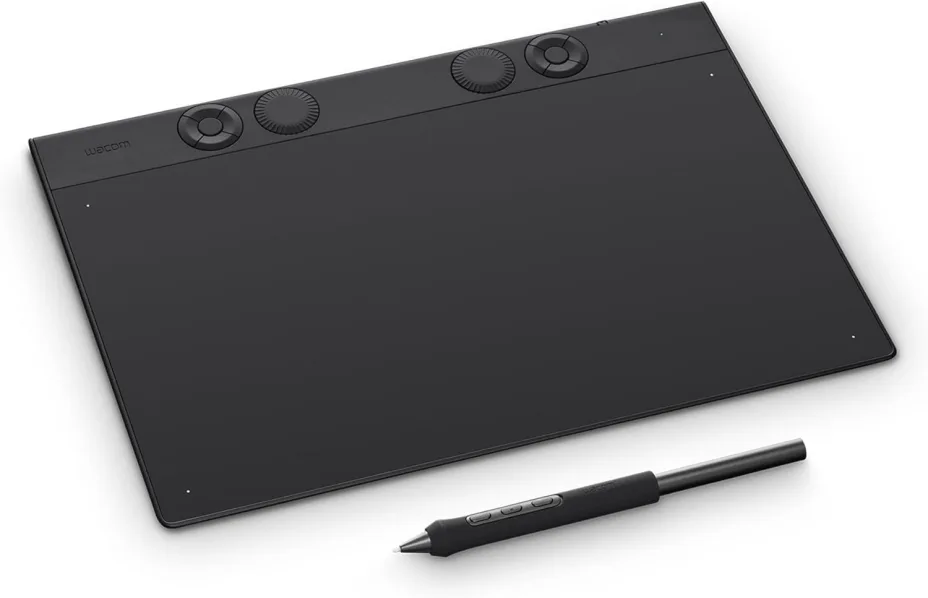
The most reliable “precision input” tool for pro designers who
want pen control on any desktop app (without needing a
screen).
Best for: Photoshop masking, Illustrator paths,
retouching, 3D sculpting | Not ideal for: Users
who need direct-on-screen drawing
Key Specs:
- Display: None (pen tablet)
- Stylus: Pro Pen 3, 8192 pressure, tilt 60°
- Performance: Works with Windows/macOS; performance depends on your computer
- Storage/Ports: USB-C; Bluetooth supported; multi-device pairing
- Weight/Battery: 411 g; up to 16 hours wireless battery life
- Display & color: Not applicable (you use your monitor)
- Pen feel: Extremely consistent for controlled curves, selections, and brush modulation.
Pen feel (latency/pressure/tilt/shortcuts)
| Feel factor | What you get |
|---|---|
| Latency/Responsiveness | Very direct; depends on OS + driver + app |
| Pressure | 8192 levels |
| Tilt | 60° |
| Shortcuts | Custom ExpressKeys + dial controls; great for Adobe hotkeys |
Pros / Cons
| Pros | Cons |
|---|---|
| Works across virtually all desktop creative apps | Learning curve vs mouse/trackpad |
| Lightweight and portable vs pen displays | Not ideal if you need “draw where you look” |
7. Best Drawing Tablet for Beginners — Wacom Intuos Medium Bluetooth (CTL-6100WL)
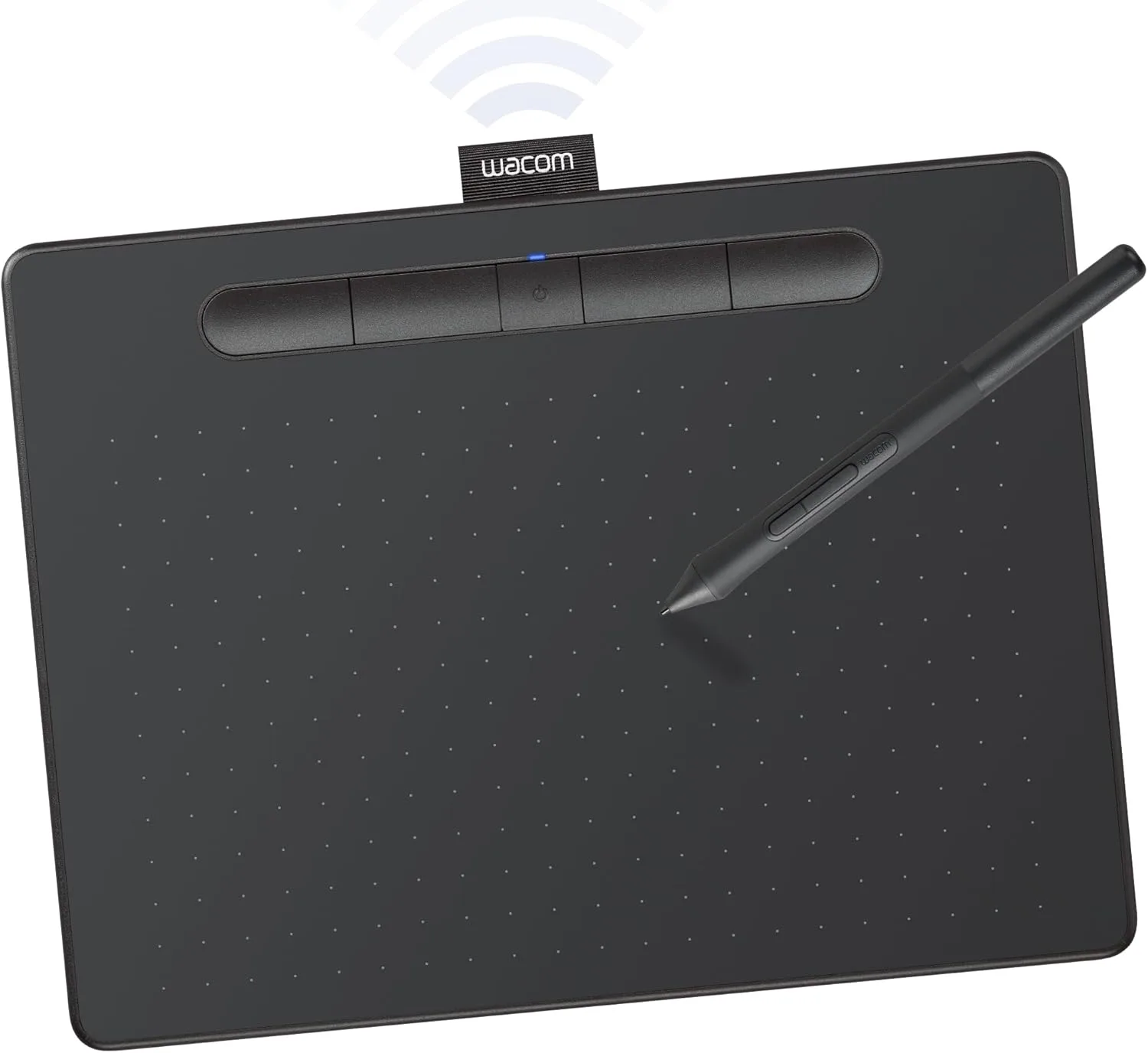
The easiest “first serious” pen tablet: simple setup, dependable
drivers, and enough pen resolution/pressure to learn
correctly.
Best for: Beginners learning digital drawing,
students, casual Photoshop work | Not ideal for:
Those who want a built-in screen
Key Specs:
- Display: None (pen tablet)
- Stylus: Wacom Pen 4K, 4096 pressure
- Performance: Desktop-app dependent (runs on your PC/Mac)
- Storage/Ports: USB + Bluetooth (wireless models)
- Weight/Battery: ~410 g; ~15 hours operation on Bluetooth models
- Display & color: Not applicable
- Learning curve: Great for building muscle memory and stroke control before upgrading to a pen display.
Pen feel (latency/pressure/tilt/shortcuts)
| Feel factor | What you get |
|---|---|
| Latency/Responsiveness | Solid for beginner sketching (host dependent) |
| Pressure | 4096 levels |
| Tilt | Not supported (per spec sheet) |
| Shortcuts | 4 ExpressKeys + on-screen radial menu tools |
Pros / Cons
| Pros | Cons |
|---|---|
| Affordable entry into “real” pen input | No screen |
| Wireless option and good core specs | No tilt; fewer pro controls |
8. Best iPad for Designers — Apple iPad Pro 13-inch (M4)
If you want the best Apple Pencil experience and maximum iPad
creative performance, iPad Pro remains the reference
choice.
Best for: High-end iPad illustration, creative
direction, client sessions | Not ideal for:
Strict budgets
(Specs, pen feel, and pricing match the UI/UX section
above.)
Starting price: US$1,299 (13"
Wi-Fi)
2026 note: The M5 iPad Pro is the
current-generation line (Oct 2025).
9. Best Android Tablet for Designers — Samsung Galaxy Tab S11 Ultra
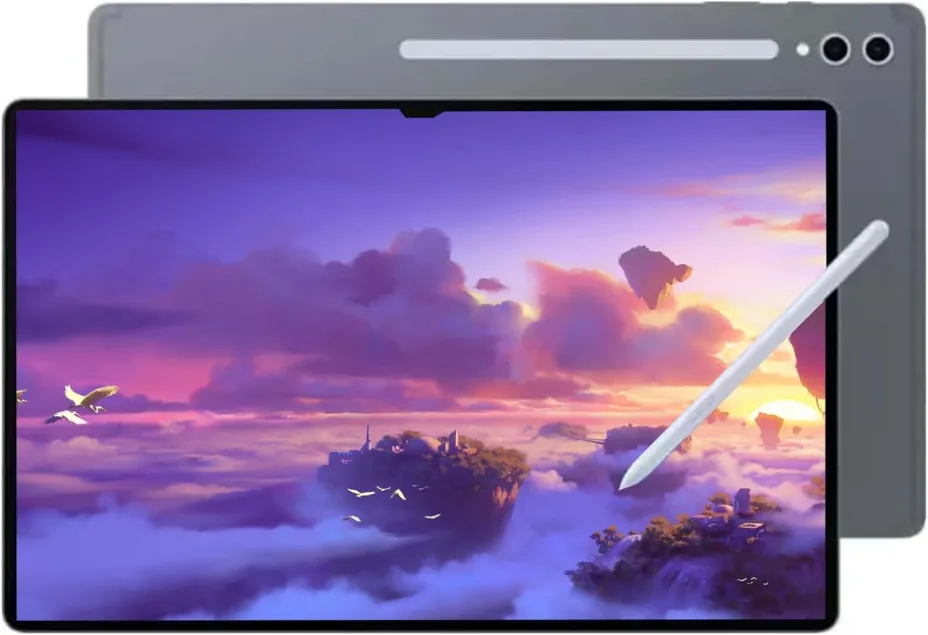
The strongest Android “big canvas” tablet option, with a large
14.6" AMOLED 120Hz display and serious multitasking
potential.
Best for: Android-first creators, large-screen
sketching, mobile Krita/CSP workflows | Not ideal
for: One-handed portability, Apple-only app ecosystems
Key Specs:
- Display: 14.6" Dynamic AMOLED 2X, 1848×2960, 120Hz
- Stylus: S Pen support (redesigned pen noted in reviews)
- Performance: MediaTek Dimensity 9400+ (per reviewer spec table)
- Storage/Ports: USB-C 3.2; microSD expansion up to 2TB (per spec table)
- Weight/Battery: ~692 g (Wi-Fi), 11,600 mAh battery (per spec table)
- Display & color: Big OLED canvas is excellent for timelines, layers, and split-screen references; peak brightness is highlighted as improved in reviews.
Pen feel (latency/pressure/tilt/shortcuts)
| Feel factor | What you get |
|---|---|
| Latency/Responsiveness | Responsive drawing feel (app-dependent) |
| Pressure | Supported (vendor does not consistently publish “levels” in marketing) |
| Tilt | Supported for brush shading behaviors (app-dependent) |
| Shortcuts | Strong multitasking UI; pairing with keyboard/DeX-style workflows is common |
Pros / Cons
| Pros | Cons |
|---|---|
| Massive 14.6" AMOLED 120Hz workspace | Large and heavy for handheld sketching |
| microSD expandability is a real advantage on Android | Creative app availability can vary vs iPad |
Best Budget Picks
Under $300 — XP-PEN Artist 12 (2nd Gen) (11.6" FHD Drawing Monitor)
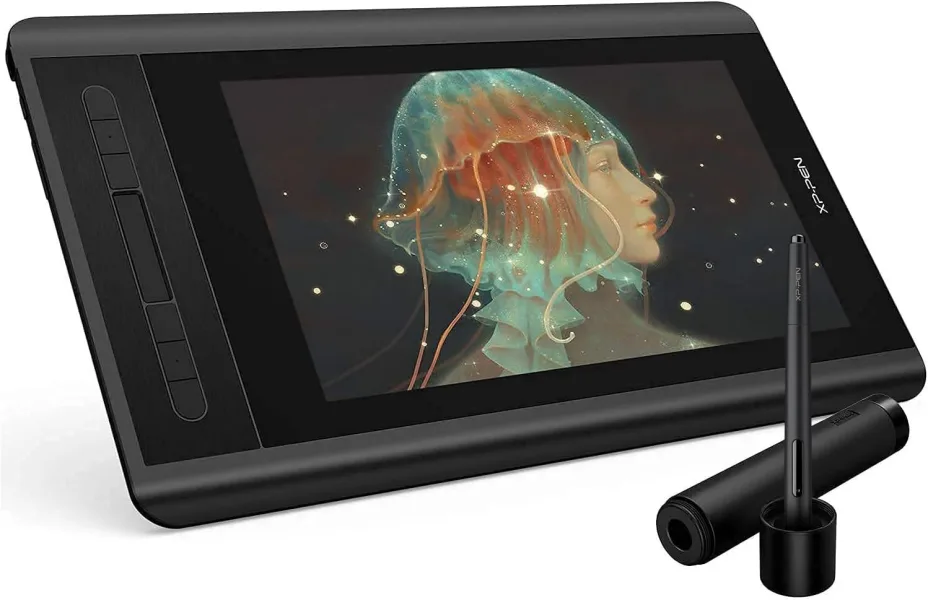
The most affordable “draw on a screen” option that still feels
legit for learning illustration and linework.
Best for: Beginners who want a display tablet
under $300 | Not ideal for: 4K detail, large
canvases, color-critical proofing
Key Specs:
- Display: 11.6" FHD (1920×1080) pen display
- Stylus: Battery-free X3 stylus; 8192 pressure; tilt support
- Performance: Host-PC dependent (pen display)
- Storage/Ports: Depends on connection mode/cables (see model page)
- Weight/Battery: No battery
- Display & color: Perfectly usable for learning and smaller canvases; UI can feel tight in pro apps due to size.
Pen feel (latency/pressure/tilt/shortcuts)
| Feel factor | What you get |
|---|---|
| Latency/Responsiveness | Good for the tier (host dependent) |
| Pressure | 8192 levels |
| Tilt | Supported |
| Shortcuts | Usually keyboard/on-screen shortcuts |
Pros / Cons
| Pros | Cons |
|---|---|
| True pen display under $300 | Small screen for complex UIs |
| Solid pen spec for the price | Not standalone; needs a computer |
Under $500 — Xencelabs Pen Tablet Medium Bundle v2
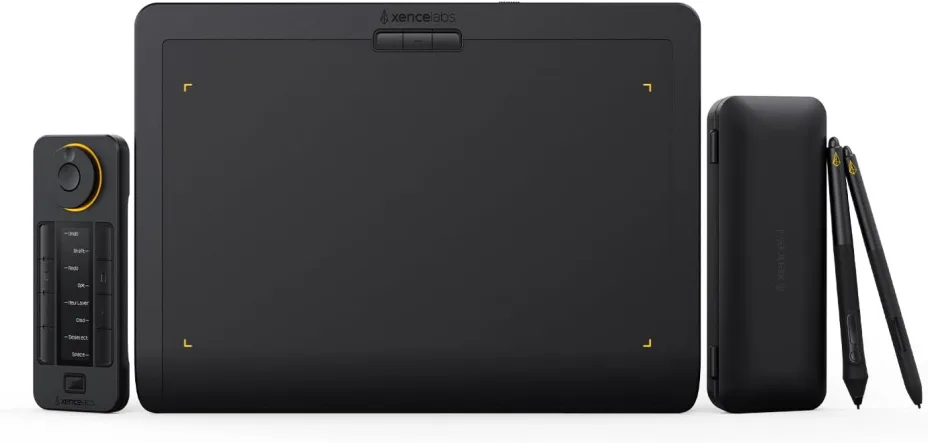
A professional pen-tablet bundle with excellent controls (Quick
Keys) that punches above its price for serious desktop design
work.
Best for: Desktop creatives who want pro control
without a screen | Not ideal for: Those who
require a pen display
Key Specs:
- Display: None (pen tablet)
- Stylus: Two pens; 8192 pressure; tilt 60°
- Performance: Works with desktop creative apps (Windows/macOS/Linux support listed)
- Storage/Ports: USB-C; wireless via dedicated Bluetooth dongle
- Weight/Battery: ~710.5 g; up to ~16 hours per charge
- Display & color: Not applicable
- Workflow: Quick Keys is a real productivity booster for Adobe hotkeys and brush controls.
Pen feel (latency/pressure/tilt/shortcuts)
| Feel factor | What you get |
|---|---|
| Latency/Responsiveness | Direct, consistent (host dependent) |
| Pressure | 8192 levels |
| Tilt | 60° |
| Shortcuts | Quick Keys OLED remote with customizable sets/dials |
Pros / Cons
| Pros | Cons |
|---|---|
| Excellent bundle value (tablet + Quick Keys + two pens) | No screen |
| Strong shortcut system for pro workflows | Wireless uses a dongle (not standard BT pairing) |
Under $1000 — Wacom Cintiq 22 (Drawing Tablet with Screen)
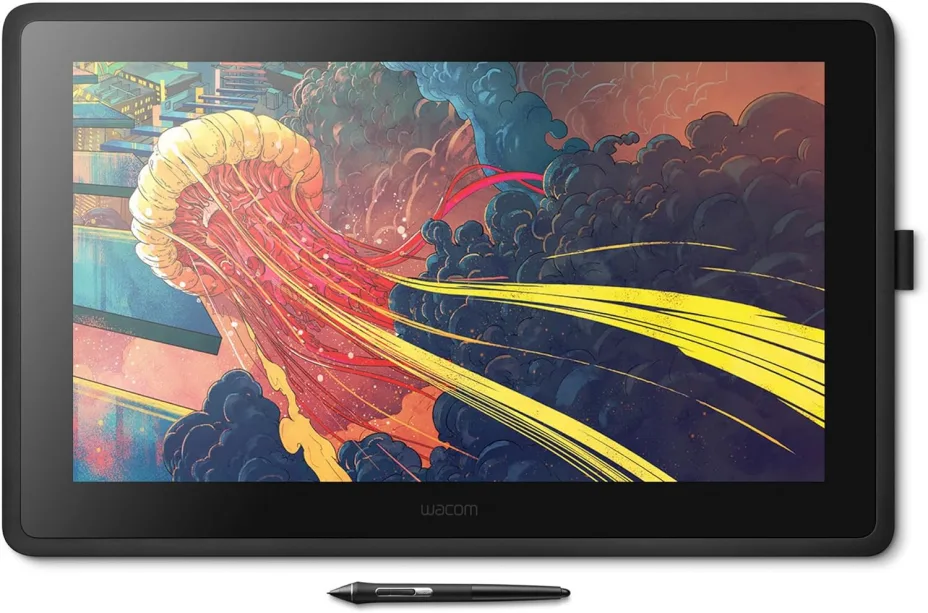
A large, comfortable entry into Wacom pen displays for artists
who want “draw-on-screen” without going to 24"+ systems.
Best for: Big-canvas drawing, comfortable arm
movement, studio desks | Not ideal for:
Travelers, very small workspaces
Key Specs:
- Display: 21.5" 1920×1080
- Stylus: Pro Pen 2; 8192 pressure; tilt 60°
- Performance: Host-PC dependent (pen display)
- Storage/Ports: HDMI + USB-A (per spec section)
- Weight/Battery: 5.6 kg (display body)
- Display & color: Full HD is fine at 22" for drawing and general creative work; UI density is manageable, but not “retina-sharp.”
Pen feel (latency/pressure/tilt/shortcuts)
| Feel factor | What you get |
|---|---|
| Latency/Responsiveness | Solid for drawing (host dependent) |
| Pressure | 8192 levels |
| Tilt | 60° |
| Shortcuts | Pen buttons; best paired with keyboard/remote |
Pros / Cons
| Pros | Cons |
|---|---|
| Large, comfortable on-screen drawing area | Full HD only at 22" |
| Strong Wacom pen performance (Pro Pen 2) | Heavy; desk-focused |
Comparison Table
| Segment | Recommended model | Type | Display (size / refresh) | Stylus (type / charging) | Ecosystem fit | Portability |
|---|---|---|---|---|---|---|
| Graphic Design (Adobe workflows) | Wacom Cintiq Pro 17 | Pen display | 17" 4K / up to 120Hz | Pro Pen 3 / battery-free | Adobe ✅ Clip ✅ 3D ✅ (via PC/Mac) | Desk-bound |
| Digital Art & Illustration | XPPen Artist Ultra 16 (4K OLED) | Pen display | 16" 4K / (varies by model) | Battery-free stylus | Adobe ✅ Clip ✅ 3D ✅ (via PC/Mac) | Desk/portable-ish |
| Architecture & CAD | Wacom Cintiq 24 Touch | Pen display | 24" QHD / 60Hz | Pro Pen 3 / battery-free | Adobe ✅ Clip ✅ 3D ✅ (via PC/Mac) | Desk-only |
| UI/UX & Prototyping | Apple iPad Pro 13" (M4) | Standalone tablet | 13" / ProMotion (up to 120Hz) | Apple Pencil Pro / magnetic charge | Procreate ✅ Adobe ✅ Clip ✅ 3D ✅ | Highly portable |
| Procreate + Photoshop | Apple iPad Air 11" (M3) | Standalone tablet | 11" / (not ProMotion) | Apple Pencil Pro / magnetic charge | Procreate ✅ Adobe ✅ Clip ✅ 3D ✅ | Highly portable |
| Drawing with pen (desktop apps) | Wacom Intuos Pro Medium (BT) | Pen tablet | — | Pro Pen 3 / battery-free | Adobe ✅ Clip ✅ 3D ✅ (via PC/Mac) | Very portable |
| Beginners (best first tablet) | Wacom Intuos Medium (BT) | Pen tablet | — | Battery-free pen | Adobe ✅ Clip ✅ 3D ✅ (via PC/Mac) | Very portable |
| Best Android for designers | Samsung Galaxy Tab S11 Ultra | Standalone tablet | 14.6" / 120Hz | S Pen / (no charging needed for basic use) | Procreate — Adobe ⚠️ Clip ✅ 3D ⚠️ | Portable (large) |
| Budget under $300 | XP-PEN Artist 12 (2nd Gen) | Pen display | 11.6" FHD / 60Hz | Battery-free pen | Adobe ✅ Clip ✅ 3D ✅ (via PC/Mac) | Portable-ish |
| Budget around $500 | Xencelabs Pen Tablet Medium Bundle v2 | Pen tablet | — | Battery-free pens + Quick Keys | Adobe ✅ Clip ✅ 3D ✅ (via PC/Mac) | Very portable |
| Budget around $1000 | Wacom Cintiq 22 | Pen display | 22" FHD / 60Hz | Pro Pen 2 / battery-free | Adobe ✅ Clip ✅ 3D ✅ (via PC/Mac) | Desk-bound |
How We Chose & Tested
Design tablets should be judged by real workflow performance—not just specs. To keep this list fair and useful, we compared every model using the same criteria and repeatable test scenarios.
Evaluation Criteria
We focused on what matters most for designers:
- Pen experience: latency, line stability, pressure/tilt, parallax, and screen friction.
- Palm rejection & comfort: long-session ergonomics and edge accuracy.
- Display for design: brightness, uniformity, viewing angles, and color potential (wide color / calibration support where applicable).
- App performance: smoothness in common design apps, heavy layers, large brushes, and export reliability.
- Sustained performance: thermals and throttling during longer sessions.
- File workflow: external SSD support, USB-C behavior, cloud sync, and cross-device formats (PSD/SVG/PDF).
- Productivity: keyboard/trackpad support, shortcuts, and multitasking/windowing.
-
Value:
total cost (tablet + stylus/keyboard) and software support
longevity.
Testing Method
When hands-on testing is available, we run consistent scenarios across devices:
- Same brush set + same canvas size
- Same layer-heavy file to reveal lag/memory limits
- Same export tests (common formats/settings)
-
Same multitasking
setup (reference + app + files)
If hands-on isn’t possible, we validate specs with reputable independent testing and cross-check with user feedback for consistency.
Who This Is For / Not For
- For: illustrators, UI/UX designers, and creators who need reliable pen feel, stable performance, and efficient file/export workflows.
-
Not
for: workflows requiring full desktop
CAD or desktop-only plugins/tools that don’t translate
well to tablet OS limitations.
Affiliate Disclosure
Some
links may be affiliate links. If you purchase through them, we
may earn a commission at no extra cost to you. This
doesn’t influence rankings—we choose products based on
the criteria above and clearly note tradeoffs.
How to Choose a Tablet for Design in 2026 (Buyer Guide)
Pick a tablet that matches your apps + pen feel + display needs. Specs matter, but workflow fit matters more.
Display (your canvas)
- Size: 11–12" for portable work; 13–14"+ for UI/UX, split-screen, detailed art.
- Refresh rate: 120Hz feels noticeably smoother for drawing/inking.
- Brightness: higher is better if you work near windows or outdoors.
- Color: prioritize strong color support if you do print or color-critical work.
-
OLED vs
LCD: OLED = contrast/pop; LCD = often more consistent
whites (depends on model).
Stylus (your tool)
- Look for low latency, tilt, stable palm rejection.
- Check charging/pairing convenience and how secure magnetic attachment is.
-
Confirm nib
availability/cost; consider a matte
protector for paper-like friction (slightly softer
image).
Performance (real-world smoothness)
- Prefer strong sustained performance (avoids brush lag and export slowdowns).
- More RAM helps with big canvases, many layers, multitasking.
-
Choose
enough storage for PSD/RAW libraries;
ensure fast external SSD support if
needed.
OS & Apps (the deciding factor)
- iPadOS: typically best tablet-first creative app experience.
- Android: strong hardware; verify your exact apps/features.
-
Windows:
best for full desktop software workflows; often less “instant
sketch.”
Ports & Connectivity (productivity)
- USB-C with solid data speeds for SSDs and large files.
- If you present/work at a desk, confirm external display support.
- Consider cellular if you work on-site and rely on cloud files.
Accessories (make it a studio)
- Keyboard/trackpad for UI/UX, shortcuts, writing.
- Stand for ergonomics; case to protect pen + device.
- Screen protector only if you want more drawing friction.
In 2026, the “best tablet for designers” depends less on
hype and more on your daily workflow. If you’re an
illustrator, prioritize pen feel, low latency,
and a display that makes brushwork look natural—then choose the
model that runs your go-to drawing app smoothly for long
sessions. For UI/UX designers, look for a
bright, color-consistent screen, strong multitasking, and
seamless keyboard/trackpad support so you can move fast between
wireframes, prototypes, and feedback. If you’re a student
or buying on a budget, focus on the best value combo: a
reliable stylus, enough performance for your core apps, and a
screen size you can comfortably use on the go.
Next step: Pick based on your primary app + display needs + portability. Start with the app you use most, match it to the ecosystem that supports it best, then choose the screen size and weight you’ll actually carry every day.
FAQ
❓ What screen size is ideal for UI/UX work?
❓ Is Android viable for professional design?
❓ Which tab is best for designing?
❓ What tablet do graphic artists use?
❓ Which tab is best for fashion designers?
❓ Which is the best tablet for drawing?










 Continue with Google
Reviews